

 By
Introduction
Oracle AI Agent Studio provides Workflow Builder to design and automate business processes using a sequence of connected nodes. Each node performs a specific task, such as processing information, executing business logic, interacting with Oracle Fusion data, invoking AI agents, or controlling the execution flow.
Understanding the available nodes is important when designing an effective workflow. Selecting the right node helps simplify the workflow, improve execution, and reduce unnecessary complexity.
For example, consider an HR Help Desk automation scenario where an employee responds to an existing service request. The workflow can identify the employee’s response, retrieve the request details, evaluate its current status, update the request where appropriate, and notify the relevant stakeholders.
Instead of building the entire process using a single AI agent, we can divide it into smaller steps and use different workflow nodes to perform each operation.
In this article, we will explore the different node categories available in Oracle AI Agent Studio, understand the purpose of each node, and discuss practical scenarios where they can be used.
1. Understanding Workflow Builder
A workflow in Oracle AI Agent Studio is a predefined sequence of tasks represented by connected nodes.
Each node performs a specific operation and passes its output to the subsequent node. This allows developers to control how information is received, processed, and transferred throughout the workflow.
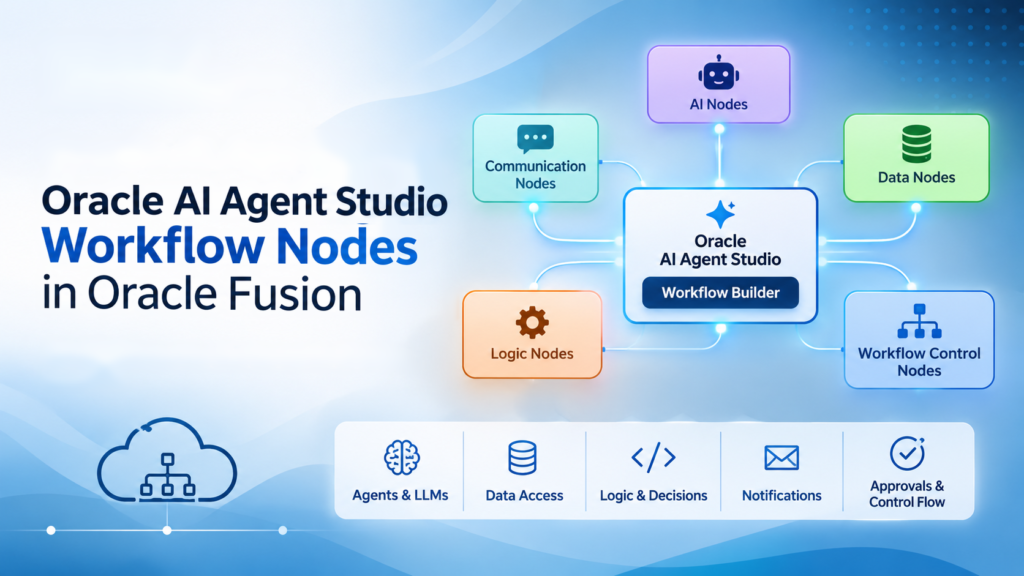
Workflow Builder organizes nodes into the following categories:
- AI Nodes
- Communication Nodes
- Data Nodes
- Logic Nodes
- Workflow Control Nodes
Each category serves a different purpose in the overall workflow.
2. AI Nodes
AI nodes are used when a workflow needs artificial intelligence capabilities, such as understanding information, generating responses, invoking agents, or retrieving knowledge.
2.1 Agent Node
The Agent node invokes an existing AI agent to perform a specific task within the workflow.
Instead of implementing all the instructions and capabilities directly in the workflow, we can delegate a particular task to an already configured agent.
Example:
In an HR Help Desk automation scenario, an Agent node can invoke an HR Help Desk agent to analyze an employee’s response and identify whether the employee has provided the requested information.
When to use:
- When an existing AI agent can perform a specific task.
- When you want to reuse an agent within multiple workflows.
- When a workflow requires AI-based analysis or decision-making.
2.2 LLM Node
The LLM (Large Language Model) node uses a language model to understand, process, or generate information based on the instructions and input provided.
It is useful when a workflow needs to interpret unstructured information or generate a structured response.
Example:
An employee responds to an HR Help Desk request with:
“I have uploaded the requested salary certificate. Please let me know if anything else is required.”
An LLM node can analyze the response and generate a structured summary indicating that the requested document has been provided.
When to use:
- Summarizing employee responses.
- Extracting relevant information from text.
- Classifying requests.
- Generating natural-language responses.
2.3 Multi Agent Node
The Multi Agent node allows a workflow to work with multiple AI agents through a coordinated agent team.
It is useful when a business process requires multiple specialized agents to perform different tasks.
Example:
An HR Help Desk process may involve:
- An agent to understand the employee’s query.
- An agent to identify the relevant HR policy.
- An agent to summarize the available information.
The Multi Agent node can be used when these tasks need coordinated agent capabilities.
When to use:
- When a task requires multiple specialized agents.
- When different agents have separate responsibilities.
- When a process benefits from coordinated AI reasoning.
2.4 RAG Document Tool Node
The RAG Document Tool node retrieves relevant information from indexed documents using Retrieval-Augmented Generation (RAG).
It helps the workflow generate responses grounded in organizational documents rather than relying entirely on the language model’s general knowledge.
Example:
An employee raises a question about maternity leave.
The workflow can use the RAG Document Tool to retrieve relevant information from the organization’s maternity leave policy and use the retrieved content to prepare a response.
When to use:
- Retrieving HR policies and guidelines.
- Searching organizational knowledge documents.
- Providing context-based answers.
- Grounding AI-generated responses in approved documentation.
2.5 Workflow Node
The Workflow node allows an existing workflow to be invoked from another workflow.
This helps divide a large business process into smaller, reusable workflows.
Example:
A parent HR Help Desk workflow may invoke a separate workflow responsible for retrieving employee information or processing a service request update.
When to use:
- Reusing an existing workflow.
- Breaking complex processes into smaller workflows.
- Maintaining separate workflows for different business functions.
3. Communication Nodes
Communication nodes are used to send information or notifications as part of the workflow execution.
3.1 Send Email Node
The Send Email node sends an email to specified recipients based on the workflow configuration.
It can be used to notify employees, HR representatives, managers, or other stakeholders when a particular event occurs.
Example:
When an HR Help Desk request is successfully updated, the workflow can send an email notification to the employee confirming that the request status has changed.
When to use:
- Sending employee notifications.
- Informing HR teams about request updates.
- Sending approval or escalation notifications.
- Communicating workflow outcomes.
3.2 Publish Signal Node
The Publish Signal node publishes a signal that can be used to communicate an event or trigger a related process.
It is useful when a workflow needs to publish an event for another part of the application or process to consume.
Example:
After completing a specific HR transaction, a workflow can publish a signal indicating that the operation has been completed.
When to use:
- Publishing workflow events.
- Communicating completion of a process.
- Supporting event-driven integrations and coordination.
4. Data Nodes
Data nodes allow workflows to retrieve, process, update, or exchange information with Oracle Fusion and external systems.
4.1 Business Object Function Node
The Business Object Function node allows a workflow to interact with supported Oracle Fusion business object functions.
It can be used to perform business operations through the available business object functions.
Example:
An HR workflow may use a supported business object function to retrieve relevant employee or HR Help Desk request information.
When to use:
- Accessing supported Oracle Fusion business object operations.
- Retrieving or updating business information.
- Executing supported business functions within a workflow.
4.2 AI Guidance Node
The AI Guidance node allows a workflow to read existing guidance or write new guidance that can be reused across agentic experiences.
Guidance can include summaries, recommendations, alerts, and insights.
Example:
An HR workflow generates a recommendation for an HR representative based on an employee’s service request. The workflow can store this recommendation as AI Guidance associated with the relevant business record.
When to use:
- Storing business recommendations.
- Retrieving previously generated insights.
- Sharing contextual guidance across agentic experiences.
4.3 Document Processor Node
The Document Processor node processes documents using a configured document schema.
It helps extract relevant information from documents and makes the extracted information available for further workflow processing.
Example:
An employee uploads a supporting document as part of an HR request.
The Document Processor node can process the document and extract relevant information based on the configured schema.
When to use:
- Extracting information from uploaded documents.
- Processing structured or semi-structured documents.
- Preparing document information for subsequent workflow steps.
4.4 External REST Node
The External REST node enables a workflow to communicate with external applications and services through REST APIs.
It can be used when the required information or operation is not directly available through another configured workflow node.
Example:
An HR workflow needs to retrieve information from an external application. The External REST node can invoke the relevant REST endpoint and pass the response to subsequent nodes.
When to use:
- Integrating third-party applications.
- Retrieving information from external REST services.
- Sending information to external systems.
- Supporting application-to-application communication.
4.5 Tool Node
The Tool node allows workflows to invoke supported tools without having to recreate their underlying functionality.
Depending on the selected tool type, it can provide access to capabilities such as Deep Link, Connector, Chat Attachments Reader, Intent Change Indicator, and User Session.
Example:
A workflow can use the User Session tool to retrieve relevant information about the signed-in user, or the Chat Attachments Reader to process an uploaded chat attachment.
When to use:
- Reusing configured tools.
- Accessing user session information.
- Processing chat attachments.
- Generating deep links.
- Using supported connector capabilities.
4.6 Vector DB Reader Node
The Vector DB Reader node retrieves relevant information from a configured vector database.
It is useful for semantic searches where the workflow needs to find information based on meaning rather than only exact keyword matches.
Example:
An HR Help Desk workflow can search previously stored knowledge or relevant information using a semantic query.
When to use:
- Retrieving semantically relevant information.
- Searching vectorized knowledge.
- Supporting similarity-based information retrieval.
4.7 Vector DB Writer Node
The Vector DB Writer node writes information into a configured vector database.
It can be used to store information that may be retrieved later through a Vector DB Reader node.
Example:
A workflow can store relevant knowledge content or processed information in a vector database for future semantic retrieval.
When to use:
- Storing information for semantic retrieval.
- Building knowledge-based workflows.
- Supporting future similarity searches.
5. Logic Nodes
Logic nodes help manage workflow data and perform deterministic processing.
5.1 Code Node
The Code node allows developers to execute JavaScript code within a workflow.
It is useful when the required data transformation or processing cannot be easily achieved using standard workflow configuration.
Example:
An HR workflow receives a date value and needs to transform it into a required format before passing it to another node.
A Code node can perform the transformation using JavaScript.
When to use:
- Performing custom data transformations.
- Applying calculations.
- Formatting input and output values.
- Implementing custom processing logic.
5.2 Set Variables Node
The Set Variables node is used to assign or update variable values during workflow execution.
Variables help maintain information that needs to be reused by subsequent nodes.
Example:
An HR workflow retrieves an employee’s Person Number and stores it in a workflow variable. The same variable can then be used by subsequent nodes to retrieve employee-related information.
When to use:
- Storing intermediate results.
- Maintaining values between workflow steps.
- Preparing inputs for subsequent nodes.
- Updating workflow variables.
5.3 Policy Node
The Policy node evaluates predefined business rules using an associated Policy Model.
Policy Models can be created using business policy documents or manually defined rules. This provides consistent and repeatable decision-making.
Example:
An HR workflow evaluates an employee’s eligibility for a particular benefit based on predefined eligibility rules.
The Policy node executes the associated policy function and returns the evaluation result.
When to use:
- Evaluating business policies.
- Applying eligibility rules.
- Performing consistent rule-based decisions.
- Implementing policy-driven calculations.
6. Workflow Control Nodes
Workflow Control nodes are among the most important components when designing complex workflows.
They determine how and when a workflow should proceed, branch into different paths, repeat operations, wait for an action, or return a result.
6.1 Human Approval Node
The Human Approval node allows a workflow to pause and wait for human intervention before proceeding.
It is particularly useful for business processes that require manual review or approval.
Example:
An AI workflow identifies an HR transaction that requires approval from an HR representative.
The Human Approval node can pause the workflow until the required approval action is completed.
When to use:
- HR or manager approvals.
- Sensitive business transactions.
- Manual validation.
- Processes requiring human intervention.
6.2 Reference Node
The Reference node is used to invoke an existing Reference Block within a workflow. It allows developers to reuse predefined workflow logic without recreating the same steps.
Example:
An HR workflow may invoke a reusable Reference Block to validate employee information before processing an HR Help Desk request.
When to use:
- Reusing existing workflow logic.
- Invoking predefined Reference Blocks.
- Avoiding duplication of workflow steps.
- Simplifying workflow maintenance.
6.3 Reference Block Node
The Reference Block node allows developers to create a reusable block of workflow logic. It can contain different workflow components, such as agents, LLMs, tools, and other workflow nodes.
Once created, the Reference Block can be invoked multiple times within the workflow using Reference nodes.
Example:
A common employee validation process can be created as a Reference Block and reused in multiple HR workflows.
When to use:
- Creating reusable workflow components.
- Organizing common processing logic.
- Maintaining consistency across workflows.
- Reducing duplication and simplifying workflow design.
6.4 If Condition Node
The If Condition node evaluates a condition and directs the workflow based on whether the condition is true or false.
It is useful when a workflow has two possible execution paths.
Example:
An HR Help Desk workflow checks whether a request is currently in Open status.
- If the condition is true, the workflow proceeds with the request update.
- If the condition is false, the workflow follows an alternative path.
When to use:
- Validating business conditions.
- Checking request status.
- Applying simple decision logic.
- Creating true/false execution paths.
6.5 For Loop Node
The For Loop node iterates through a collection of records and executes the configured steps for each item.
It is useful when the same operation needs to be performed on multiple records.
Example:
An HR workflow receives a collection of employee records and needs to process each record individually.
The For Loop node can iterate through the collection and execute the required processing steps for each employee.
When to use:
- Processing multiple records.
- Iterating through collections.
- Performing repetitive operations.
- Applying the same logic to multiple items.
6.6 Parallel Node
The Parallel node allows multiple workflow branches to execute concurrently.
Instead of waiting for one independent operation to finish before starting another, the workflow can execute multiple branches in parallel.
Example:
After receiving an HR Help Desk request, a workflow may need to retrieve employee information and request details.
If these operations are independent, they can be executed in parallel.
When to use:
- Executing independent operations simultaneously.
- Reducing overall processing time.
- Performing multiple data retrieval operations.
- Running independent business checks.
6.7 Return Node
The Return node is used to return control to a specific upstream node within a multi-branch workflow context.
It helps manage execution when a workflow needs to return from a branch rather than continue through the remaining steps in that branch.
Example:
A workflow processes multiple branches and needs to return control to a designated upstream point after completing a particular branch.
When to use:
- Managing multi-branch execution.
- Returning control to a specific upstream node.
- Organizing complex workflow execution paths.
6.8 Switch Node
The Switch node evaluates an input value and directs workflow execution to the matching outcome.
Unlike the If Condition node, which typically handles two possible paths, the Switch node supports multiple outcomes.
Example:
An HR Help Desk workflow checks the current status of a request.
Based on the request status, it can follow different paths:
- Open – Continue request processing.
- In Progress – Check the assigned team’s progress.
- Waiting for Employee – Evaluate the employee’s response.
- Closed – End the processing path.
When to use:
- Handling multiple business conditions.
- Routing requests based on status.
- Categorizing employee requests.
- Replacing multiple nested If Condition nodes where appropriate.
6.9 Wait Node
The Wait node allows workflow execution to pause until the configured waiting condition is satisfied.
It can be used when a workflow needs to wait for an action or a specified number of iterations before continuing.
Example:
An HR workflow needs to wait for a particular action to be completed before proceeding with the next processing step.
The Wait node can be used to introduce the required waiting behavior.
When to use:
- Waiting for an action to complete.
- Introducing controlled pauses.
- Managing execution that depends on a waiting condition.
6.10 While Loop Node
The While Loop node repeatedly executes configured workflow steps as long as a specified condition remains true.
Unlike the For Loop node, which iterates through a collection, the While Loop node is condition-driven.
Example:
An HR workflow repeatedly checks whether a required processing condition has been satisfied.
The loop continues while the condition remains true and exits when the condition becomes false.
When to use:
- Repeating operations based on a condition.
- Performing repeated validation.
- Handling processes where the number of iterations is not known in advance.
7. Understanding the Difference Between Similar Nodes
Some workflow nodes may appear similar, but their purposes are different.
| Node | Primary purpose |
| If Condition | Selects between true and false outcomes. |
| Switch | Routes execution across multiple outcomes. |
| For Loop | Iterates through a collection. |
| While Loop | Repeats execution while a condition is true. |
| Parallel | Executes independent branches concurrently. |
| Wait | Pauses workflow execution based on configured waiting behavior. |
| Human Approval | Waits for human approval or intervention. |
| Return | Returns control to a designated upstream node. |
| Set Variables | Assigns or updates workflow variables. |
| Code | Executes custom JavaScript logic. |
Understanding these differences helps avoid unnecessary complexity when designing workflows.
8. Example: Combining Workflow Nodes in an HR Help Desk Scenario
Let’s consider a practical scenario where an employee responds to an existing HR Help Desk request.
The objective is to identify the employee’s response, evaluate the request, update the request when appropriate, and notify the employee.
A possible workflow design could be:
- Agent Node: Invoke an agent to understand the employee’s response.
- Business Object Function Node: Retrieve the relevant HR Help Desk request details.
- LLM Node: Analyze the employee’s response and extract relevant information.
- Set Variables Node: Store the request ID and extracted information.
- If Condition Node: Check whether the response contains the required information.
- Switch Node: Route the workflow based on the request status.
- Business Object Function Node: Perform the supported request update.
- Human Approval Node: Obtain human intervention if the business process requires it.
- Send Email Node: Notify the employee about the outcome.
The actual sequence and nodes required will depend on the business requirements, supported business object functions, and configured integrations.
This example demonstrates how different node categories can work together to automate an end-to-end business process.
9. Best Practices When Designing Workflows
While Oracle AI Agent Studio provides several nodes to build workflows, selecting the appropriate nodes is important for maintaining an efficient design.
Consider the following best practices:
1. Break the process into smaller steps
Identify the individual activities involved in the business process before creating the workflow.
2. Use the right node for the right operation
Use Logic nodes for deterministic processing, AI nodes for language-based reasoning, and Data nodes for supported system interactions.
3. Avoid unnecessary LLM calls
Do not use an LLM for simple operations such as assigning a variable, checking a fixed value, or performing straightforward calculations.
4. Reuse existing agents and workflows
Where appropriate, reuse existing agents, tools, and workflows instead of recreating the same functionality.
5. Use parallel execution carefully
Use Parallel nodes when operations are independent and can safely execute simultaneously.
6. Include appropriate error handling
Consider what should happen if a REST call, business object operation, or another node fails.
7. Test the workflow before publishing
Validate different execution paths, node outputs, conditions, and exception scenarios before making the workflow available to users.
10. Conclusion
Oracle AI Agent Studio Workflow Builder provides a range of nodes to design intelligent and controlled business process automation.
Each node has a specific purpose, whether it is invoking an AI agent, processing data, executing JavaScript, communicating with external systems, or controlling workflow execution.
Understanding these nodes and their differences is the first step toward designing effective workflow agents in Oracle Fusion Applications.
Start with a simple business scenario, identify the individual processing steps, and select the appropriate nodes to build the workflow.