

 By
Introduction
In the previous article, How to Configure Employee Satisfaction Surveys in Oracle Fusion HR Help Desk (26C), we covered the complete configuration flow for sending a satisfaction survey after an HR Help Desk request is resolved.
As part of that configuration, we used the Survey Authoring Agent Team to create the survey template. However, the detailed navigation and survey creation process were not covered in that article.
In this article, we will walk through each step, from accessing AI Agent Studio to creating an HR Help Desk survey through a simple conversation.
By the end of this article, you will have a Survey ID ready to use in the object event trigger discussed in the main configuration article.
Before you begin
Make sure the following prerequisites are in place before starting:
- The Surveys feature is enabled in Setup and Maintenance. Refer to Step 1 of the main configuration article.
- Generative AI is enabled for the relevant Help Desk environment.
- Your user has access to AI Agent Studio and the Survey Authoring Agent Team.
- Your user has the required survey privileges and data-security access for HR Help Desk.
Required survey privileges
Oracle documents the following privileges for survey functionality:
| Privilege | Purpose |
| Manage Survey Requests | Allows administrators to create survey templates. |
| View Survey Integration Framework Template | Allows access to survey integration framework templates. |
| View Survey Requests | Allows access to survey requests. |
For HR Help Desk, Oracle associates these privileges with the HR Service Request Administration, HR Service Request Analysis and HR Service Request Management duty roles, as applicable.
If your organization uses custom roles, ask your security administrator to review the required privileges and data-security policies. Administrators also need access to AI Agent Studio and the published Survey Authoring Agent Team.
Step 1: Navigate to AI Agent Studio
- Sign in to Oracle Fusion Applications.
- Open the Navigator.
- Under Tools, select AI Agent Studio.
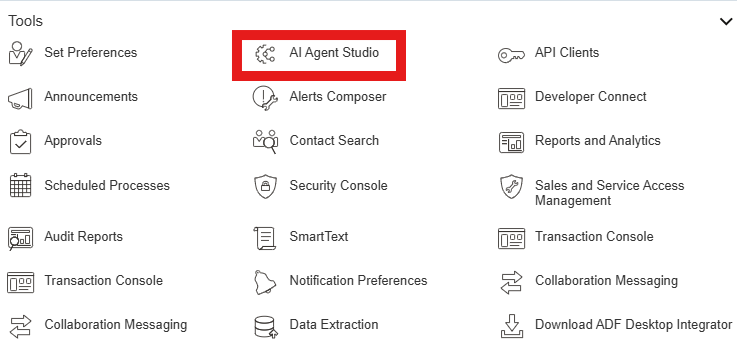
Figure 1: Navigator > Tools > AI Agent Studio.
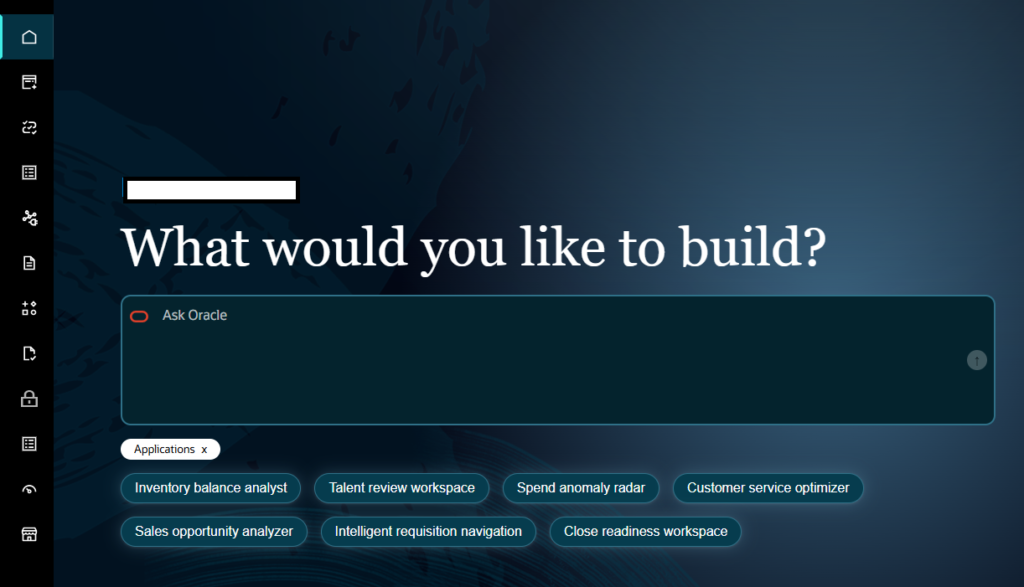
If you are using the new AI Agent Studio interface, select Monitoring and Evaluation to open the traditional AI Agent Studio interface.
You will need the traditional interface to run the Survey Authoring Agent Team in 26C.

Step 2: Locate Survey Authoring Agent Team
- In the latest AI Agent Studio interface, navigate to the Resources > AI Agents.
- Search for Survey Authoring Agent Team.
- Click Edit Pencil.
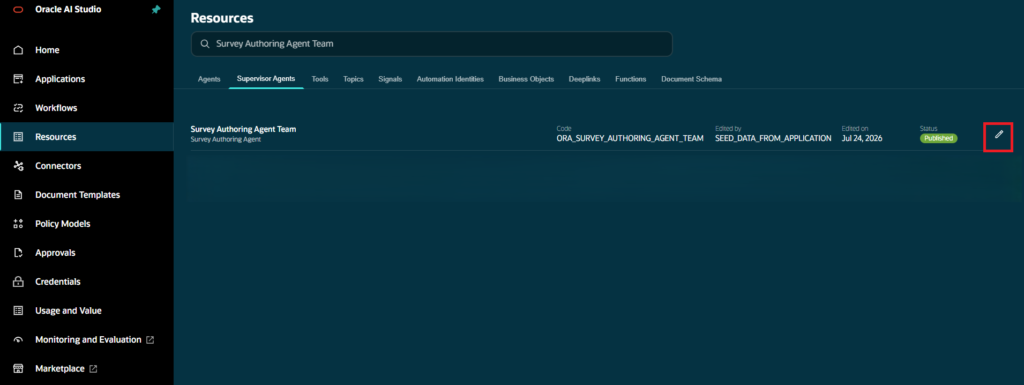
The Survey Authoring Agent Team is an Oracle-provided agent team designed to help administrators create and update survey templates through a conversational experience.
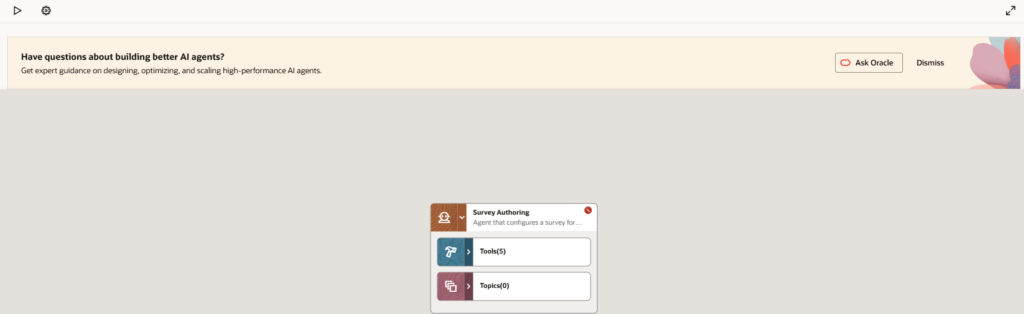
In the traditional AI Agent Studio interface, navigate to the Supervisor Agent tab and search for Survey Authoring Agent Team.
Step 3: Create the HR Help Desk survey through conversation
Now comes the actual survey creation process.
The agent works through a chat-based experience, allowing you to describe your survey requirements in plain language rather than manually creating every question.
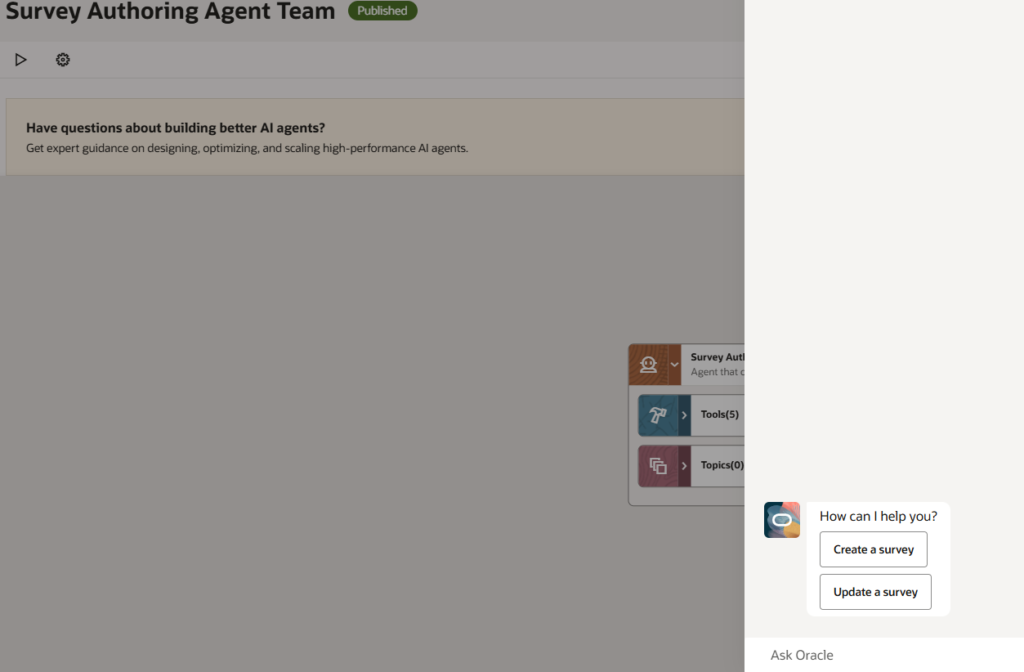
Click the Play icon to start the conversation.
3.1 Start the conversation
- Click the Play icon.
- Select Create a Survey to initiate the conversation.
3.2 Select the survey type
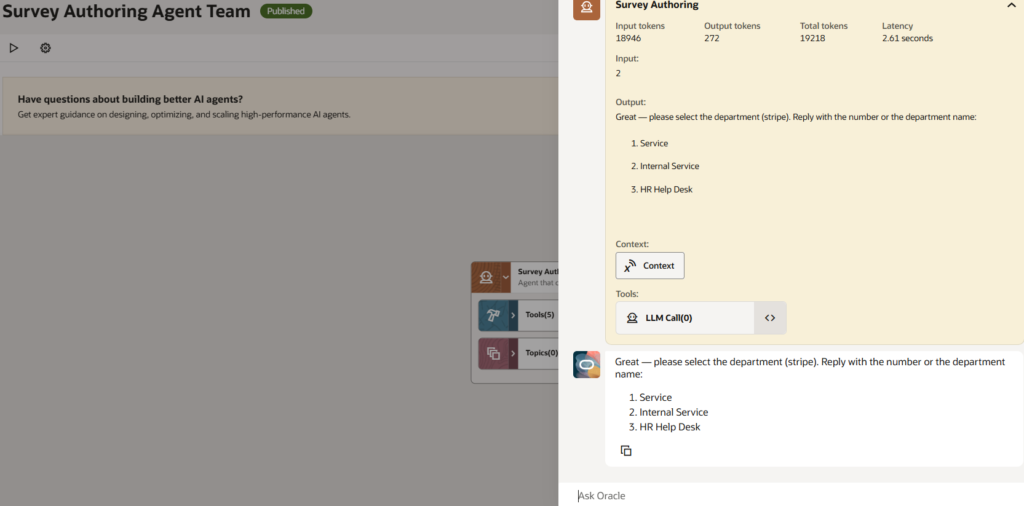
The agent will ask you to select the survey type.
For HR Help Desk, follow these selections:
- Select Service Request.
- Then, Select HR Help Desk.
The available survey types depend on the user’s access:
- Service
- Internal Service
- HR Help Desk
Choose HR Help Desk because the survey is intended to collect feedback on an HR Help Desk request.
The survey type must correspond to the object that will trigger the survey when the request is closed.
3.3 Describe the survey
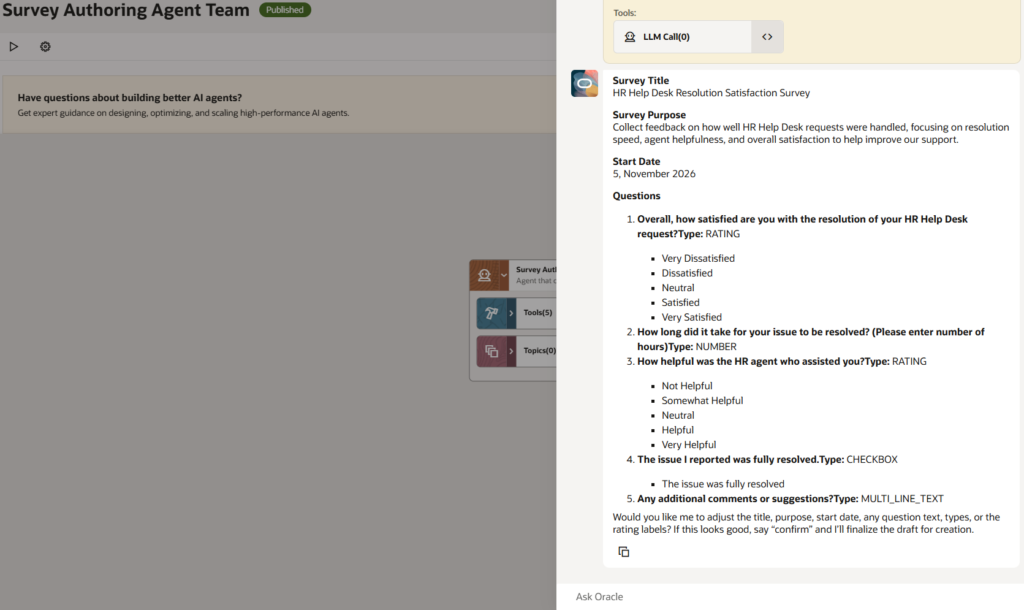
The agent will now ask you to describe the survey or provide a survey topic.
You can also specify the number of questions and the type of responses you want to collect.
For example, you can use the following prompt:
Employee satisfaction survey on resolution of an HR Help Desk request.
Include five questions covering:
Overall satisfaction rating.
Resolution time.
Agent helpfulness.
Whether the issue was fully resolved.
Open comments.
The agent generates a draft survey based on your requirements, including questions and response options.
Review the generated questions to make sure they capture the feedback you need.
3.4 Refine the draft
One of the useful aspects of the Survey Authoring Agent Team is that you can refine the generated survey through simple conversational instructions.
For example, you can ask the agent to:
- Delete all questions after question 3.
- Reword question 2 to make it more concise.
- Make question 4 a multiple-choice question with the options Yes, No and Maybe.
Continue refining the survey until the questions and response options meet your requirements.
Oracle documents support for several question types, including Checkbox, Date, Drop-down, Multi-line Text, Multi-select, Radio Button, Rating and Slider.
3.5 Save the survey
Once you are satisfied with the survey:
- Confirm with the agent that you want to create the survey.
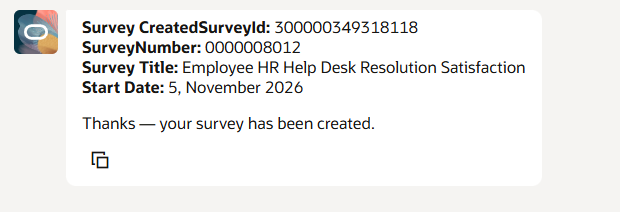
- The agent saves the survey to the Survey Framework.
- The agent displays the survey details, including:
Survey ID
Survey Number
Survey Title
Important: Copy the Survey ID and keep it safe. You will need to use this value in the surveyId variable in the object event trigger discussed in Step 3 of the main configuration article.
Updating an existing survey
If you need to make changes to an existing survey later, you do not necessarily have to recreate it.
You can use the Update a Survey conversation.
Follow these steps:
- Start the conversation by selecting Update a Survey.
- Provide the survey title or Survey ID. If you do not know either, describe the survey and select the matching survey if the agent offers search results.
- Request the changes you want using plain language.
- Review the updated survey and confirm the changes.
The agent confirms once the update has been saved.
Common issues and tips
1. HR Help Desk Request is not listed as a survey type
The survey types displayed depend on the user’s access. Ask your security administrator to verify the HR Help Desk security stripe (ORA_SVC_HRHD) and the required survey privileges.
2. Cannot find the Survey Authoring Agent Team
Confirm that Generative AI and the Surveys feature are enabled. Also verify that your user has access to AI Agent Studio and the published Survey Authoring Agent Team.
If you are using the newer AI Agent Studio interface, switch to the traditional interface through Monitoring and Evaluation.
3. Lost the Survey ID
Start an Update a Survey conversation and search using the survey title or other identifying information. Confirm that you have selected the correct survey before using its ID in the object event trigger.
4. Keep the question count short
Keep the survey focused on the feedback you actually need. A concise survey makes it easier for employees to complete it after their Help Desk request is resolved.
Conclusion
The Survey Authoring Agent Team simplifies the process of creating and updating survey templates in Oracle Fusion HR Help Desk.
By accessing the Oracle-provided agent team and describing your requirements in plain language, administrators can generate survey questions, refine the draft and create a survey without manually building every question.
Once the survey is created, the Survey ID can be used in the object event trigger to initiate the satisfaction-survey process.
With the survey template ready, continue with the remaining configuration steps in our main article, including the object event trigger, REST web service and email notification.
1 Comment