

 By
Understanding the Oracle Fusion HR Help Desk request lifecycle is important for both employees and HR Help Desk agents. In this guide, we will create a sample request, verify its queue assignment, check agent access, test the request lifecycle, and troubleshoot common issues.
Use these steps in a test or non-production environment. Available categories, fields, status names, navigation labels, and agent actions can vary depending on your Oracle Fusion HCM release and implementation.
What you will learn
- Create a sample HR Help Desk request as an employee.
- Check the request details and current status.
- Verify queue assignment and agent visibility.
- Test category visibility and user access.
- Troubleshoot common submission, routing, and access issues.
1. Understand the request lifecycle
A typical request lifecycle can be understood through the following stages. The exact workflow and status transitions depend on your implementation.
- Submit: An employee selects an available category, enters the request details, and submits the request.
- Create and identify: The application creates the request and provides a ticket number.
- Route: Configured assignment rules and queue/resource setup determine where the request should be handled.
- Review and respond: An authorized HR Help Desk agent opens the request, reviews the details, and follows the organization’s process.
- Resolve or close: The agent updates the request according to the configured lifecycle and confirms the outcome where appropriate.
Keep this distinction in mind: the category describes the employee’s issue, while assignment and access configuration influence how the request is routed and who can work with it.
2. Prerequisites
Before creating a request, confirm the following with your implementation or test account:
- The test employee can access the HR Help Desk request experience.
- The category, queue, resources, and assignment rules required for the test scenario are configured.
- The intended agent has the appropriate application roles and data access.
- You are working in a test or non-production environment and will not enter real employee personal data.
3. Create a sample request as an employee
Sign in with a test employee account and open the Create HR Help Desk Request page. Depending on your environment, you may reach it through a Quick Action or through My Help > Create Request.

Use the navigation path configured in your environment. Page names and labels can differ between releases and page experiences.
Complete the fields before submitting the request:
- Choose a category: Select one that should be available to the employee, such as HR Support or Benefits, if configured in your test environment.
- Enter a clear subject: For example: “Test request – benefits question”. Use a unique subject so the request is easy to identify.
- Add a detailed description: Describe a harmless test scenario and do not include real employee personal data.
- Review and submit: Check the category and request details before submitting.
- Record the result: Capture the request number.

4. Verify assignment and agent access
Sign out of the employee test account, then sign in with an HR Help Desk agent test account. Open Help Desk > Help Desk Request, or use the equivalent navigation available in your environment.
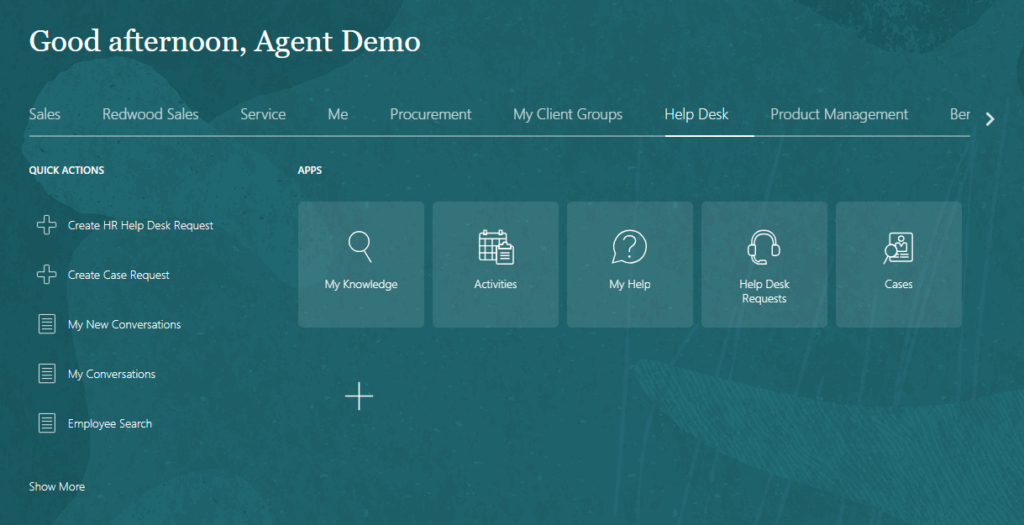
Search for the request using its request number or another supported search method. Check the following:
- Can the intended agent find the request?
- Does the request appear in the expected queue or assignment group?
- Does the request show the expected category and summary?
- Can the agent open the request and view the information required for their role?
- If the request is not visible, can an administrator verify the assignment result and the agent’s data access?
Do not assume that an application role automatically grants access to every request. Application privileges, resource or queue membership, assignment configuration, and data security can all affect the result.
5. Test the request lifecycle
Use a small, repeatable test plan. Record the expected result before each test, then compare it with what happens.
| Test | Expected result | Evidence to record |
| Request submission | The request is created and a request identifier is available. | Request number, category, timestamp, displayed status |
| Category visibility | The employee sees the categories intended for that request experience. | Test user, visible categories, selected category |
| Queue assignment | The request is routed to the expected queue or agent group. | Expected and actual queue; assignment details available to an administrator |
| Agent access | An authorized agent can find and open the request. | Agent test account, search method, result |
| Request handling | The agent can perform permitted actions in line with the configured process. | Action taken and resulting status |
| Resolution or closure | The request reaches the intended end state according to the configuration. | Final status and any confirmation shown |
6. Troubleshoot common problems
Problem: The employee cannot see the expected category
Check whether the category is active and configured for the relevant request experience. Confirm the employee’s access and any category-visibility conditions. If SQL conditions or other rules are used, ask an authorized administrator to validate them carefully. Do not change production conditions without assessing the impact.
Related article: How to Restrict HR Help Desk Categories in Oracle Fusion HCM
Problem: The request is submitted, but it is not in the expected queue
Confirm the selected category, the assignment rules expected to match the request, and the queue/resource setup. Check whether the rule conditions match the test request’s actual values.
Related article: Oracle Fusion HR Help Desk Setup: Categories, Queues, and Assignment Rules
Problem: The agent cannot find or open the request
Confirm that the request exists and that you are searching with the correct identifier. Then review the agent’s assigned resources, queue access, application roles, and applicable data security policies.
Problem: The request is visible to one agent but not another in the same queue
Compare the agents’ application roles, resource or queue membership, request ownership or assignment, and data access. If the differences are not clear, ask an administrator to review the relevant assignment and security configuration.
Problem: A page shows old information or behaves inconsistently
Refresh the page and, where appropriate, sign out and back in or test in a clean browser session. If the issue continues, record the time, page, user role, steps followed, and any error message. Consider browser cache only after checking that the configuration and access are correct.
Conclusion
The best way to learn the HR Help Desk request lifecycle is to create a controlled test request and follow it through submission, assignment, agent access, handling, and resolution. When something fails, capture the evidence and investigate category setup, routing, resources, and security separately. A repeatable test process makes troubleshooting clearer and helps reduce unnecessary configuration changes.
Continue learning
Oracle Fusion HR Help Desk: Beginner’s Guide
Oracle Fusion HR Help Desk Setup: Categories, Queues, and Assignment Rules
Oracle Fusion HR Help Desk: Resources, Queue Assignment, Security, and User Access
How to Restrict HR Help Desk Categories in Oracle Fusion HCM
How to Configure HR Help Desk Data Security Policy in Oracle Fusion HCM
How to Automatically Change HR Help Desk Request Status After an Employee Response